Region snapshot
A dimmed overlay and crosshair cursor let you select a pixel-perfect region. Full multi-display support.
 InkClip
A lightweight capture app that lives in your menu bar. Region, full-screen, window, and timer — plus the new video capture. One-click re-shoot of your last region and burst capture, too. Shoot, then annotate with text, arrows, and shapes right in the viewer, and save or copy. With InkClip, capture–annotate–keep happens in one breath.
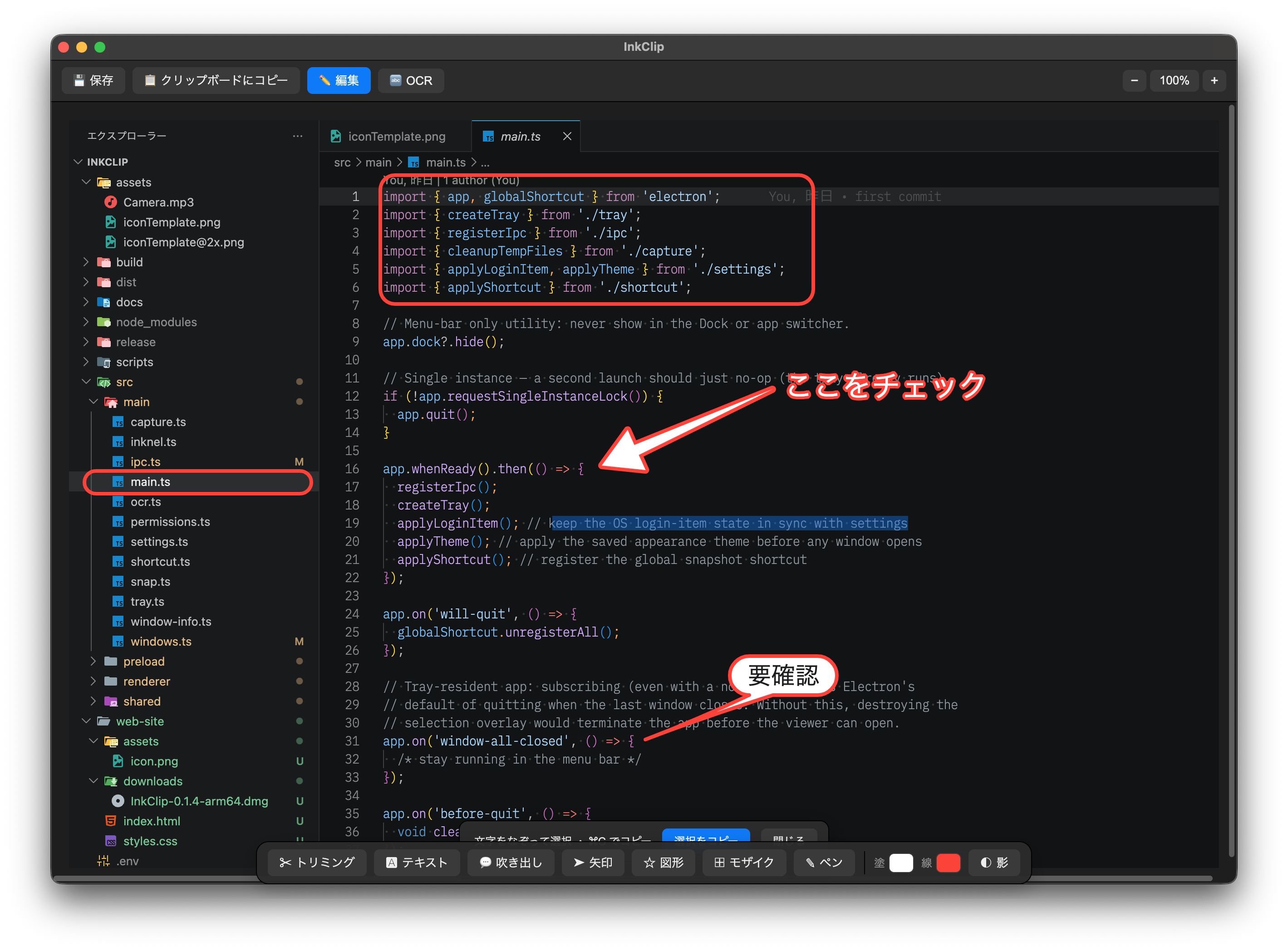 Lives in your menu bar
Just the features you need, with a Mac-native feel.
A dimmed overlay and crosshair cursor let you select a pixel-perfect region. Full multi-display support.
Shoots after a 3 / 5 / 10-second countdown — never miss a menu, hover, or other state that vanishes.
Record the selected region as video. Press Esc to stop and a dedicated preview opens, where you can scrub the timeline and layer text, shapes, arrows, pen/marker, and mosaic with time-based timing. Hide a shape at another point and it disappears there; cut the unwanted head and tail with time trimming. Undo/Redo supported. The viewer's toolbar is the same as for stills — copy, OCR, and note saving act on the frame at the play head.
Click Info in the viewer to reveal a side panel with everything about the shot: date taken, which monitor (main/sub), the exact start & end coordinates, image size, DPI, and color model. For video captures it also shows the length and save format.
Re-shoot a region with one click via “Last region.” “Burst” auto-shoots a set count (2–10) at an interval (1–5s), with the remaining count and next-shot progress shown right in the menu bar.
Capture the whole display under the cursor, or click a specific window. Switch capture modes quickly from the menu bar.
Native-size preview right after capture. 50–400% zoom, pan, and modern overlay scrollbars let you inspect every corner.
Automatically detect text in the image and pull it out as data. Select and copy recognized text directly, so you can reuse text from images with no retyping. It works on video captures too, reading the frame you paused on. Powered by the built-in macOS Vision engine for high accuracy.
Switch the entire interface between Japanese and English from Settings — the menu bar, the viewer, and the editing toolbar all follow instantly, with no restart.
One-click save with a prefix + app name + date naming rule. Capture-time stamping and sequence / overwrite conflict handling are automatic.
When you just want to paste, copy in one click — your annotations come along, baked into the clipboard image.
Theme (system / light / dark), launch at login, shutter sound, save folder, and naming rules — all tuned in a macOS System Settings–style screen.
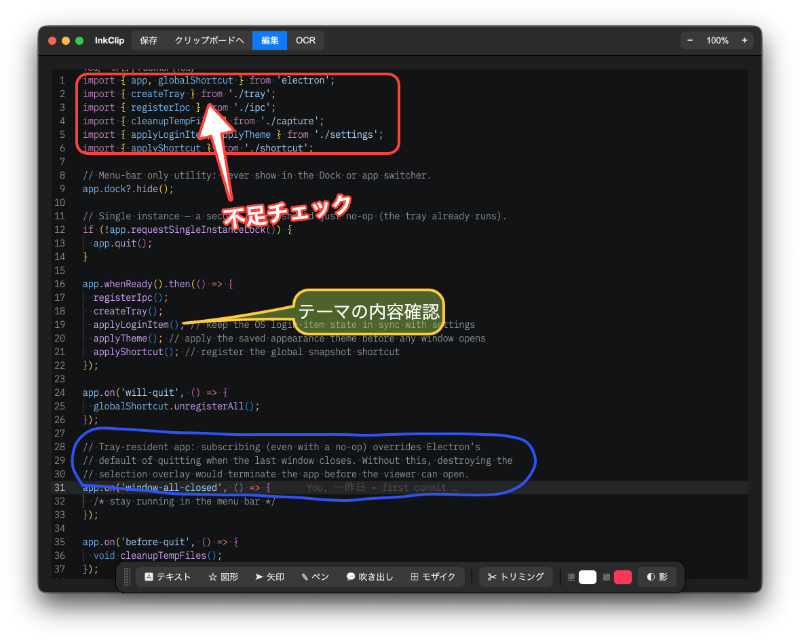
Mark up directly on the image with text, shapes, arrows, pen, callouts, mosaic, and cropping, with fine control over font, outline, shadow, and rotation. Saving and copying bake the edits in, matching exactly what you see. The same tools work for video captures, layering annotations at chosen playback times.
Info
Press Info in the viewer and a panel slides in beside the image with the full story of your shot — without ever leaving InkClip. Great for bug reports, design specs, and documentation, where the exact pixels and where they came from actually matter.
We rebuilt the toolbar into a Mac-native, unified design.
A rounded-segment toolbar that blends into the window's title bar.
The floating edit bar drags from the grip on its left. The active tool is highlighted.
From install to your first shot in minutes.
Open the .dmg and drag InkClip to your Applications folder. It's signed and notarized, so it launches right away.
You'll be asked for permission on your first capture. Allow it in System Settings and restart the app.
Pick “Region” from the menu-bar icon and drag to shoot. Choose “Record region video” to record (Esc to stop), “Capture last region” to re-shoot the same spot, or “Burst” for automatic sequential shots.
InkClip menu
A signed & notarized .dmg for Apple Silicon (arm64). Get started now.
Download InkClip 0.5.11